
1. ບົດແນະນຳ
This manual provides essential instructions for the proper setup, operation, and maintenance of your AmazonBasics 10-Port USB 3.0 Hub. Please read this manual thoroughly before using the product to ensure optimal performance and safety. Keep this manual for future reference.
2. ຄໍາແນະນໍາຄວາມປອດໄພ
- ຢ່າເຮັດໃຫ້ອຸປະກອນຖືກຄວາມຊຸ່ມຊື່ນ, ອຸນຫະພູມສູງສຸດ, ຫຼືແສງແດດໂດຍກົງ.
- ຢ່າພະຍາຍາມຖອດປະກອບ ຫຼື ດັດແປງອຸປະກອນ. ການເຮັດແບບນີ້ອາດເຮັດໃຫ້ການຮັບປະກັນເປັນໂມຄະ ແລະ ມີຄວາມສ່ຽງດ້ານຄວາມປອດໄພ.
- Use only the provided power adapter. Using an incompatible power adapter may damage the device or connected peripherals.
- ຮັກສາອຸປະກອນໃຫ້ຫ່າງຈາກເດັກນ້ອຍ.
- Ensure proper ventilation around the hub during operation.
3. ເນື້ອໃນຊຸດ
ກວດສອບວ່າລາຍການທັງຫມົດທີ່ລະບຸໄວ້ຂ້າງລຸ່ມນີ້ແມ່ນມີຢູ່ໃນຊຸດຂອງທ່ານ:
- AmazonBasics 10-Port USB 3.0 Hub
- ອະແດັບເຕີໄຟ (DC 15V)
- ສາຍຂໍ້ມູນ USB 3.0
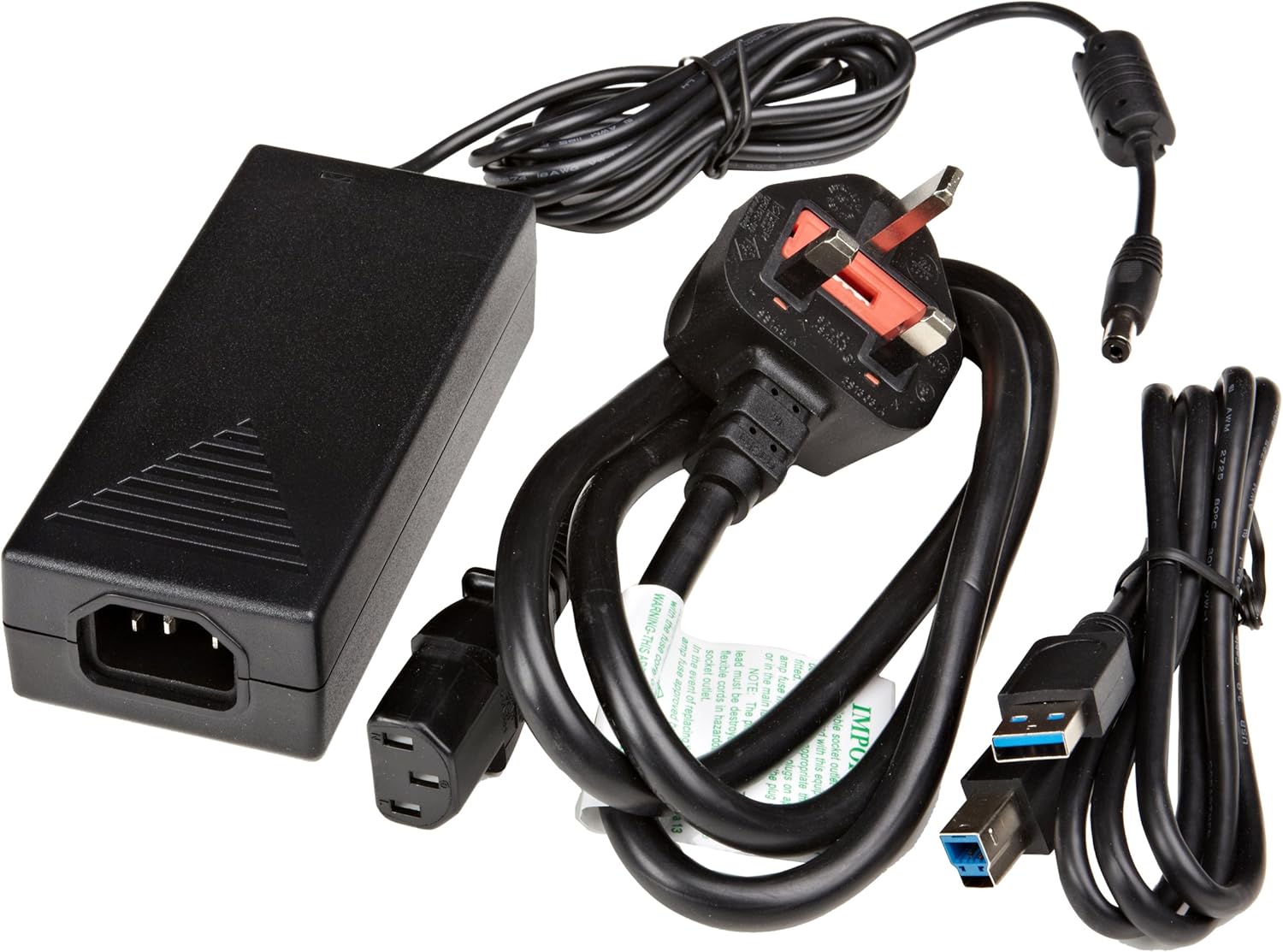
ຮູບທີ 3.1: The image displays the AmazonBasics 10-Port USB 3.0 Hub, its power adapter, and a USB 3.0 data cable, which are the typical contents found in the product packaging.
4. ຜະລິດຕະພັນເກີນview
The AmazonBasics 10-Port USB 3.0 Hub expands your computer's connectivity, offering ten USB 3.0 ports for various peripherals. It supports high-speed data transfer and is backward compatible with USB 2.0 devices.
4.1 ດ້ານໜ້າ ແລະ ດ້ານຂ້າງ View

ຮູບທີ 4.1: This image shows the front and left side of the USB hub. On the front, three USB 3.0 ports are visible, two of which are labeled 'Fast'. The left side features the upstream USB 3.0 port for connecting to a computer and the DC 15V power input.
4.2 Top and Rear View

ຮູບທີ 4.2: ຮູບພາບນີ້ສະຫນອງເທິງລົງລຸ່ມ view of the USB hub, highlighting five additional USB 3.0 ports located on the rear panel. An 'ON/OFF' switch is also visible on the side, allowing users to power the hub on or off.
4.3 ລຸ່ມ View

ຮູບທີ 4.3: ລຸ່ມ view of the hub shows four rubber feet for stability and a product label containing regulatory information and the model number.
5. ຄູ່ມືການຕິດຕັ້ງ
Follow these steps to set up your USB 3.0 hub:
- ເຊື່ອມຕໍ່ອະແດບເຕີໄຟຟ້າ: Plug the provided power adapter into the DC 15V input port on the side of the USB hub. Then, plug the power adapter into a standard electrical outlet.
- ເຊື່ອມຕໍ່ກັບຄອມພິວເຕີ: Use the supplied USB 3.0 data cable to connect the upstream USB 3.0 port on the hub (located on the side) to an available USB 3.0 port on your computer.
- ເປີດ: If the hub has an ON/OFF switch (refer to Figure 4.2), ensure it is in the 'ON' position.
- ເຊື່ອມຕໍ່ອຸປະກອນຕໍ່ພ່ວງ: You can now connect your USB devices (e.g., external hard drives, keyboards, mice, flash drives) to any of the ten available USB 3.0 ports on the hub.
The hub supports automatic switching between self-power and bus-power mode. For optimal performance with multiple high-power devices, ensure the power adapter is connected.
6. ການດໍາເນີນງານ
Once connected, the AmazonBasics 10-Port USB 3.0 Hub operates automatically. Your computer should recognize connected devices without requiring additional drivers for most operating systems.
- ຄວາມໄວ USB 3.0: The hub supports SuperSpeed (5 Gbps), High Speed (480 Mbps), Full Speed (12 Mbps), and Low Speed (1.5 Mbps) data transfer rates, depending on the connected device and your computer's USB port capabilities.
- ຄວາມເຂົ້າກັນໄດ້ຂອງອຸປະກອນ: The hub is compatible with both USB 3.0 and USB 2.0 specifications, allowing you to connect a wide range of USB devices.
- ການຄຸ້ມຄອງພະລັງງານ: The hub intelligently manages power distribution to connected devices. For devices requiring more power, ensure the external power adapter is connected.
7. ການແກ້ໄຂບັນຫາ
If you encounter issues with your USB hub, refer to the following common problems and solutions:
| ບັນຫາ | ການແກ້ໄຂທີ່ເປັນໄປໄດ້ |
|---|---|
| Devices are not recognized. |
|
| ຄວາມໄວການໂອນຂໍ້ມູນຊ້າ. |
|
| Hub ບໍ່ໄດ້ເປີດເຄື່ອງ. |
|
| Intermittent device connection. |
|
8. ຂໍ້ມູນຈໍາເພາະ
- ໝາຍເລກຕົວແບບ: HU37A0V1-UK
- ພອດ: 10 x USB 3.0
- ອັດຕາການໂອນຂໍ້ມູນ: Up to 5 Gbps (USB 3.0 SuperSpeed)
- ຄວາມເຂົ້າກັນໄດ້ກັບຫຼັງ: USB 2.0, USB 1.1
- ການປ້ອນຂໍ້ມູນພະລັງງານ: DC 15V (ຜ່ານອະແດບເຕີໄຟຟ້າທີ່ໃຫ້ມາ)
- ຂະໜາດ (LxWxH): ຂະໜາດປະມານ 5.71 x 2.96 x 1.06 ນິ້ວ (14.5 x 7.5 x 2.7 cm)
- ນ້ຳໜັກ: ປະມານ 1.29 ປອນ (0.58 ກິໂລ)
- ຄວາມເຂົ້າກັນໄດ້ຂອງລະບົບປະຕິບັດການ: Windows, macOS, Linux (driver-free for most systems)
9. ການດູແລແລະບໍາລຸງຮັກສາ
- Clean the hub with a soft, dry cloth. Do not use liquid cleaners or aerosols.
- ຫຼີກເວັ້ນການຂັດຂວາງການເປີດລະບາຍອາກາດ.
- ເກັບໄວ້ໃນບ່ອນເຢັນ ແລະແຫ້ງເມື່ອບໍ່ໄດ້ໃຊ້.
10. ຂໍ້ມູນການລີໄຊເຄີນ
Dispose of this product according to local regulations. Do not dispose of it with general household waste. For more information on recycling electronic waste, contact your local authorities or the retailer where you purchased the product.
11. ການຮັບປະກັນແລະການສະຫນັບສະຫນູນ
For warranty information or technical support, please refer to the AmazonBasics support page or contact Amazon customer service directly. Details can typically be found on the Amazon webເວັບໄຊທ໌ພາຍໃຕ້ພາກສ່ວນ 'ຊ່ວຍເຫຼືອ' ຫຼື 'ບໍລິການລູກຄ້າ'.