
1. ບົດແນະນຳ
This manual provides instructions for the installation, operation, maintenance, and troubleshooting of the Juniper EX3200-24T Layer 3 Switch. The EX3200-24T is a fixed-configuration switch designed for access-layer deployments in various network environments, offering comprehensive Layer 2 and Layer 3 switching capabilities.
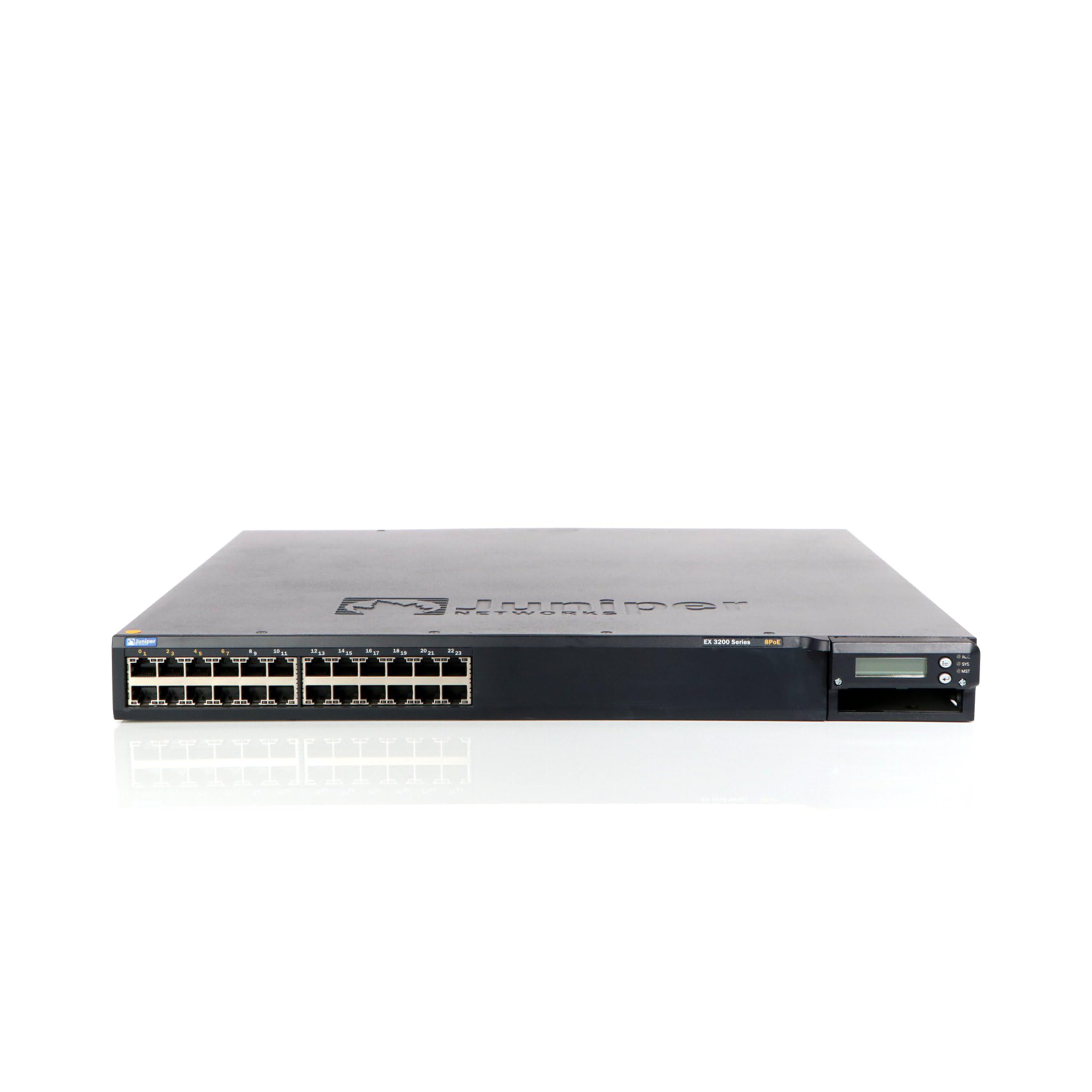
ຮູບ 1: ດ້ານຫນ້າ view of the Juniper EX3200-24T Layer 3 Switch. This image displays the 24 Ethernet ports, along with various status indicator lights and the Juniper Networks branding.
2. ຕັ້ງຄ່າ
Follow these steps to properly set up your Juniper EX3200-24T switch.
2.1 ການຫຸ້ມຫໍ່ແລະການກວດກາ
- ລະມັດລະວັງເອົາສະຫວິດອອກຈາກການຫຸ້ມຫໍ່ຂອງມັນ.
- ກວດເບິ່ງສະວິດສໍາລັບອາການໃດໆຂອງຄວາມເສຍຫາຍທາງດ້ານຮ່າງກາຍ. ຖ້າພົບເຫັນຄວາມເສຍຫາຍ, ໃຫ້ຕິດຕໍ່ຜູ້ຂາຍຂອງທ່ານທັນທີ.
- ກວດສອບວ່າອົງປະກອບທັງໝົດທີ່ລະບຸໄວ້ໃນລາຍການບັນຈຸມີຢູ່.
2.2 ການຕິດຕັ້ງແຣັກ (ທາງເລືອກ)
The EX3200-24T can be mounted in a standard 19-inch equipment rack. Use the provided rack-mount kit and follow the instructions included with the kit for secure installation.
2.3 ການເຊື່ອມຕໍ່ພະລັງງານ
- Ensure the power switch on the rear panel of the switch is in the OFF position.
- Connect the provided AC power cord to the power inlet on the rear of the switch.
- ສຽບສາຍໄຟອີກດ້ານໜຶ່ງເຂົ້າໄປໃນປ້ຳໄຟຟ້າທີ່ມີສາຍດິນ.
2.4 ການເຊື່ອມຕໍ່ສາຍເຄືອຂ່າຍ
Connect Ethernet cables from your network devices (computers, servers, other switches) to the 10/100/1000Base-T ports on the front panel of the EX3200-24T switch. Ensure cables are securely seated.
3. ຄໍາແນະນໍາການດໍາເນີນງານ
This section outlines the basic operation of the Juniper EX3200-24T switch.
3.1 ການເປີດເຄື່ອງເປີດ
After connecting the power cord, flip the power switch on the rear panel to the ON position. The system status LEDs on the front panel will illuminate during the boot process.
3.2 Understanding Status LEDs
ແຜງດ້ານຫນ້າມີໄຟ LED ຕ່າງໆເພື່ອຊີ້ບອກສະຖານະການເຮັດວຽກຂອງສະວິດແລະພອດຂອງມັນ:
- SYS LED: Indicates system status (e.g., green for normal operation, amber for warning, red for critical error).
- ALM LED: ຊີ້ບອກສະຖານະການປຸກ.
- PPM LED: Indicates power supply module status.
- Port LEDs: Each port has LEDs indicating link status and activity (e.g., green for link, blinking green for activity).
3.3 ການຕັ້ງຄ່າເບື້ອງຕົ້ນ (ການເຂົ້າເຖິງຄອນໂຊນ)
ສຳລັບການຕັ້ງຄ່າເບື້ອງຕົ້ນ, ໃຫ້ເຊື່ອມຕໍ່ສາຍເຄເບີ້ນຄອນໂຊນ (RJ-45 ຫາ DB-9) ຈາກສະຖານີເຮັດວຽກຂອງທ່ານເຂົ້າກັບພອດຄອນໂຊນໃນສະວິດ. ໃຊ້ໂປຣແກຣມຈຳລອງເທີມິນອນ (ເຊັ່ນ: PuTTY, Tera Term) ດ້ວຍການຕັ້ງຄ່າຕໍ່ໄປນີ້:
- ອັດຕາ Baud: 9600
- ບິດຂໍ້ມູນ: 8
- Parity: ບໍ່ມີ
- ຢຸດ bits: 1
- ການຄວບຄຸມການໄຫຼເຂົ້າ: ບໍ່ມີ
Refer to the Juniper Networks documentation for detailed configuration procedures.
4. ບໍາລຸງຮັກສາ
Regular maintenance ensures optimal performance and longevity of your EX3200-24T switch.
4.1 ການທໍາຄວາມສະອາດ
- Periodically clean the exterior of the switch with a soft, dry, lint-free cloth.
- Ensure ventilation openings are free from dust and obstructions to prevent overheating. Do not use liquid or aerosol cleaners directly on the switch.
4.2 ການອັບເດດເຟີມແວ
Juniper Networks periodically releases firmware updates to improve performance, add features, and address security vulnerabilities. It is recommended to keep the switch firmware updated. Refer to the official Juniper Networks support webເວັບໄຊທ໌ສຳລັບເຟີມແວ ແລະ ຂັ້ນຕອນການອັບເດດລ່າສຸດ.
4.3 ການພິຈາລະນາດ້ານສິ່ງແວດລ້ອມ
Operate the switch within its specified environmental limits (temperature, humidity) to prevent damage and ensure reliable operation. Avoid exposing the switch to direct sunlight, excessive heat, or moisture.
5. ການແກ້ໄຂບັນຫາ
This section provides solutions to common issues you might encounter with your EX3200-24T switch.
5.1 ບໍ່ມີພະລັງງານ
- ອາການ: No LEDs are illuminated, and the switch does not power on.
- ການປະຕິບັດ:
- ກວດສອບໃຫ້ແນ່ໃຈວ່າສາຍໄຟໄດ້ເຊື່ອມຕໍ່ກັບທັງສະວິດ ແລະ ປລັກໄຟຟ້າຢ່າງແໜ້ນໜາແລ້ວ.
- ກວດໃຫ້ແນ່ໃຈວ່າສະວິດໄຟຢູ່ແຜງດ້ານຫຼັງຢູ່ໃນຕຳແໜ່ງເປີດ.
- Check the electrical outlet with another device to confirm it is functional.
- If using a power strip or UPS, ensure it is powered on and functioning correctly.
5.2 ບໍ່ມີການເຊື່ອມຕໍ່ເຄືອຂ່າຍ
- ອາການ: Devices connected to the switch cannot access the network.
- ການປະຕິບັດ:
- Check the port LEDs on the switch for the connected device. A solid green LED indicates a link. If no link, try a different port or cable.
- Verify the network cable is securely connected at both ends (switch and device).
- ໃຫ້ແນ່ໃຈວ່າອະແດບເຕີເຄືອຂ່າຍຂອງອຸປະກອນທີ່ເຊື່ອມຕໍ່ນັ້ນຖືກເປີດໃຊ້ງານ ແລະ ຕັ້ງຄ່າຢ່າງຖືກຕ້ອງ.
- If multiple devices are affected, check the uplink connection from the EX3200-24T to your core network.
- Consult the switch's configuration for VLANs, IP addressing, and other network settings.
5.3 System Alarm LED (ALM) is Amber/Red
- ອາການ: The ALM LED is illuminated amber or red.
- ການປະຕິບັດ:
- Log in to the switch via the console or network management interface.
- Check system logs and alarm messages for details on the specific issue.
- Common causes include power supply issues, fan failures, or high temperature.
- Address the root cause as indicated by the logs.
6. ຂໍ້ມູນຈໍາເພາະ
Key technical specifications for the Juniper EX3200-24T Layer 3 Switch:
| ຄຸນສົມບັດ | ຂໍ້ມູນຈໍາເພາະ |
|---|---|
| ຍີ່ຫໍ້ | Juniper Networks |
| ໝາຍເລກຕົວແບບ | EX3200-24T |
| ຈໍານວນພອດ | 24 (16 x 10/100/1000Base-T, 8 x 10/100/1000Base-T) |
| ສະລັອດຕິງຂະຫຍາຍ | 1 x Expansion Slot |
| ອັດຕາການໂອນຂໍ້ມູນ | 1 Gigabits ຕໍ່ວິນາທີ |
| ການຮອງຮັບຊັ້ນ | ຊັ້ນ 3 |
| ນ້ໍາຫນັກລາຍການ | 14.9 ປອນ |
| ສີ | ດຳ |
| ອຸປະກອນທີ່ເຂົ້າກັນໄດ້ | ເດັສທັອບ |
| UPC | 832938037793 |
7. ການຮັບປະກັນແລະການສະຫນັບສະຫນູນ
7.1 ການຮັບປະກັນຜະລິດຕະພັນ
The Juniper EX3200-24T Layer 3 Switch is covered by a standard manufacturer's warranty. For detailed information regarding warranty terms, duration, and coverage, please refer to the warranty card included with your product or visit the official Juniper Networks webເວັບໄຊ.
7.2 ສະຫນັບສະຫນູນດ້ານວິຊາການ
For technical assistance, troubleshooting beyond this manual, or to report issues, please contact Juniper Networks technical support. Support resources, including documentation, FAQs, and contact information, are available on the official Juniper Networks support portal: