
1. ການແນະນໍາ ແລະຫຼາຍກວ່າview
This manual provides comprehensive instructions for the installation, operation, and maintenance of the Matrox Millennium G200 Graphics Adapter, model G2+/DUALP-PL. This PCI-based graphics card is designed to provide multi-monitor dual analog output, making it suitable for professional workstations and systems requiring reliable display capabilities. The Matrox G200 series is known for its robust performance and stability in various computing environments.
2. ສິ່ງທີ່ຢູ່ໃນກ່ອງ
ແກະກ່ອງສ່ວນປະກອບທັງໝົດອອກຢ່າງລະມັດລະວັງ ແລະ ກວດສອບວ່າທ່ານໄດ້ຮັບລາຍການຕໍ່ໄປນີ້ແລ້ວ:
- Matrox Millennium G200 Graphics Adapter (G2+/DUALP-PL)
- DMS-59 to Dual VGA Y-cable
- DMS-59 to DVI and S-Video/Composite Y-cable (may vary by package)
- Driver CD (if included, otherwise drivers can be downloaded from the Matrox webສະຖານທີ່)
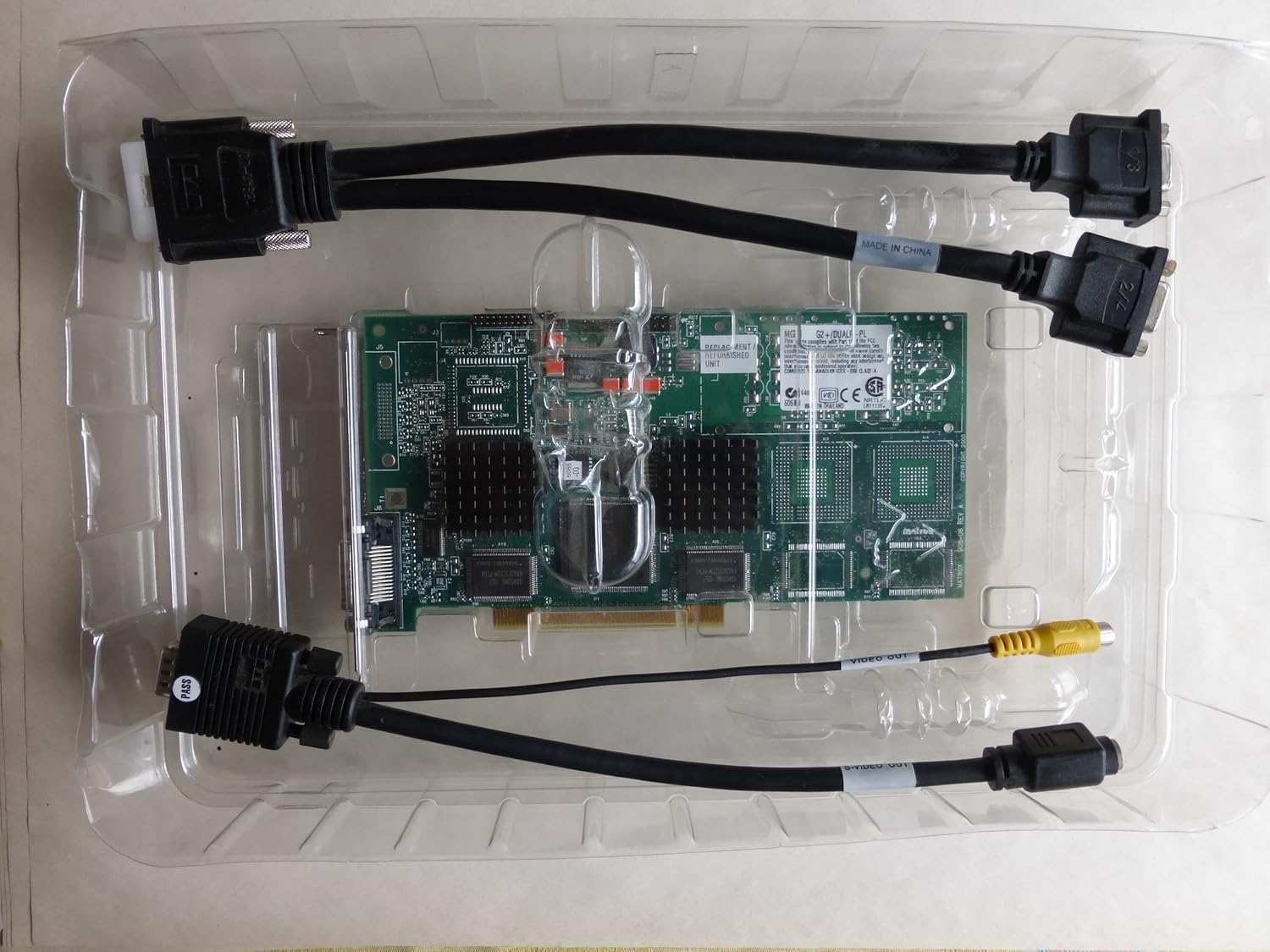
Image: The Matrox Millennium G200 graphics adapter shown within its clear plastic packaging, accompanied by its connecting cables.
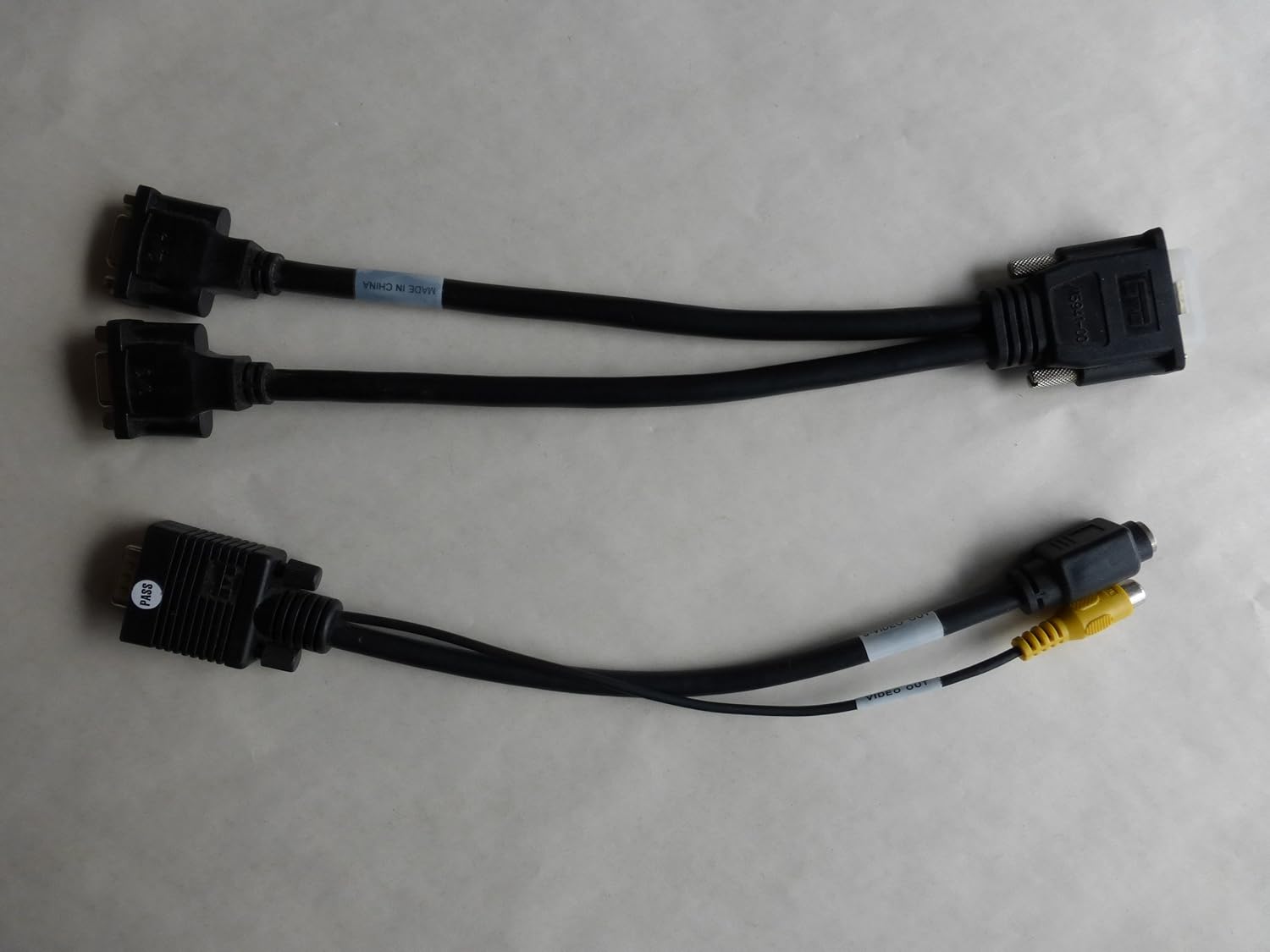
Image: Two types of Y-cables: one for dual VGA output and another for DVI and S-Video/Composite output, used with the graphics adapter.
3. ການຕິດຕັ້ງແລະການຕິດຕັ້ງ
3.1 ຂໍ້ຄວນລະວັງຄວາມປອດໄພ
- Always power off your computer and unplug it from the wall outlet before opening the case.
- Discharge any static electricity by touching a grounded metal object (e.g., the computer chassis) before handling internal components.
- Avoid touching the gold connector pins on the graphics card.
3.2 ການຕິດຕັ້ງຮາດແວ
- ເປີດກໍລະນີຄອມພິວເຕີ: ຖອດແຖບດ້ານຂ້າງຂອງກໍລະນີຄອມພິວເຕີຂອງທ່ານເພື່ອເຂົ້າເຖິງເມນບອດ.
- Locate an Available PCI Slot: Identify an empty PCI expansion slot on your motherboard. The Matrox Millennium G200 is a PCI card.
- ເອົາຝາປິດສະລັອດຕິງອອກ: ເອົາຝາປິດສະລັອດຕິງໂລຫະທີ່ສອດຄ້ອງກັບຊ່ອງສຽບ PCI ທີ່ເລືອກຢ່າງລະມັດລະວັງຈາກດ້ານຫຼັງຂອງກໍລະນີຄອມພິວເຕີຂອງທ່ານ.
- ໃສ່ກາດກຣາບຟິກ: Align the graphics card with the PCI slot and press down firmly and evenly until the card is fully seated. Ensure the metal bracket on the card aligns with the opening in the case.
- ຮັບປະກັນບັດ: Use a screw or the case's retention mechanism to secure the graphics card's bracket to the computer case.
- ປິດກໍລະນີຄອມພິວເຕີ: ປ່ຽນແຜງດ້ານຂ້າງຂອງກໍລະນີຄອມພິວເຕີຂອງທ່ານ.
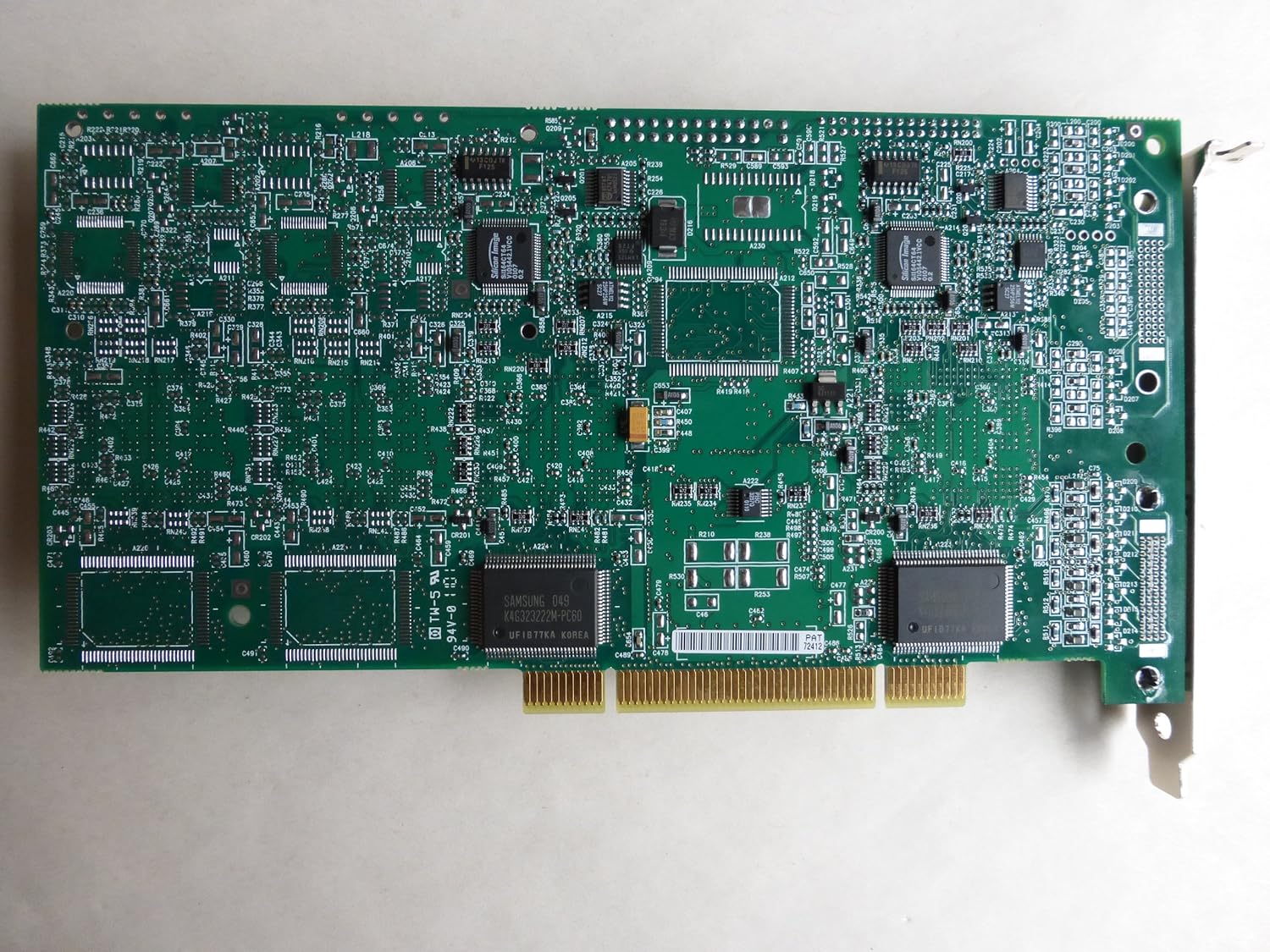
ຮູບພາບ: ເທິງລົງລຸ່ມ view of the Matrox Millennium G200 graphics adapter, showcasing its green circuit board with various chips and components.

ຮູບພາບ: ເປັນມຸມ view of the Matrox Millennium G200 graphics adapter, highlighting the DMS-59 output port and the passive heatsinks on the main chips.
3.3 ການຕິດຕັ້ງໄດເວີ
- ຕິດຕາມກວດກາ: Connect your monitor(s) to the DMS-59 port on the graphics card using the appropriate Y-cable (DMS-59 to Dual VGA or DMS-59 to DVI/S-Video).
- ເປີດຄອມພິວເຕີ: Plug in your computer and power it on. The operating system may detect new hardware and attempt to install generic drivers.
- Install Matrox Drivers:
- If a driver CD was included, insert it into your optical drive and follow the on-screen instructions.
- Alternatively, download the latest drivers for the Matrox Millennium G200 (G2+/DUALP-PL) from the official Matrox website. Run the installer and follow the prompts.
- ປິດເປີດຄອມພິວເຕີຄືນໃໝ່: After the driver installation is complete, restart your computer to apply the changes.

ຮູບພາບ: A ລາຍລະອຽດ view of the DMS-59 connector along with S-Video and Composite video output jacks on one of the adapter cables.
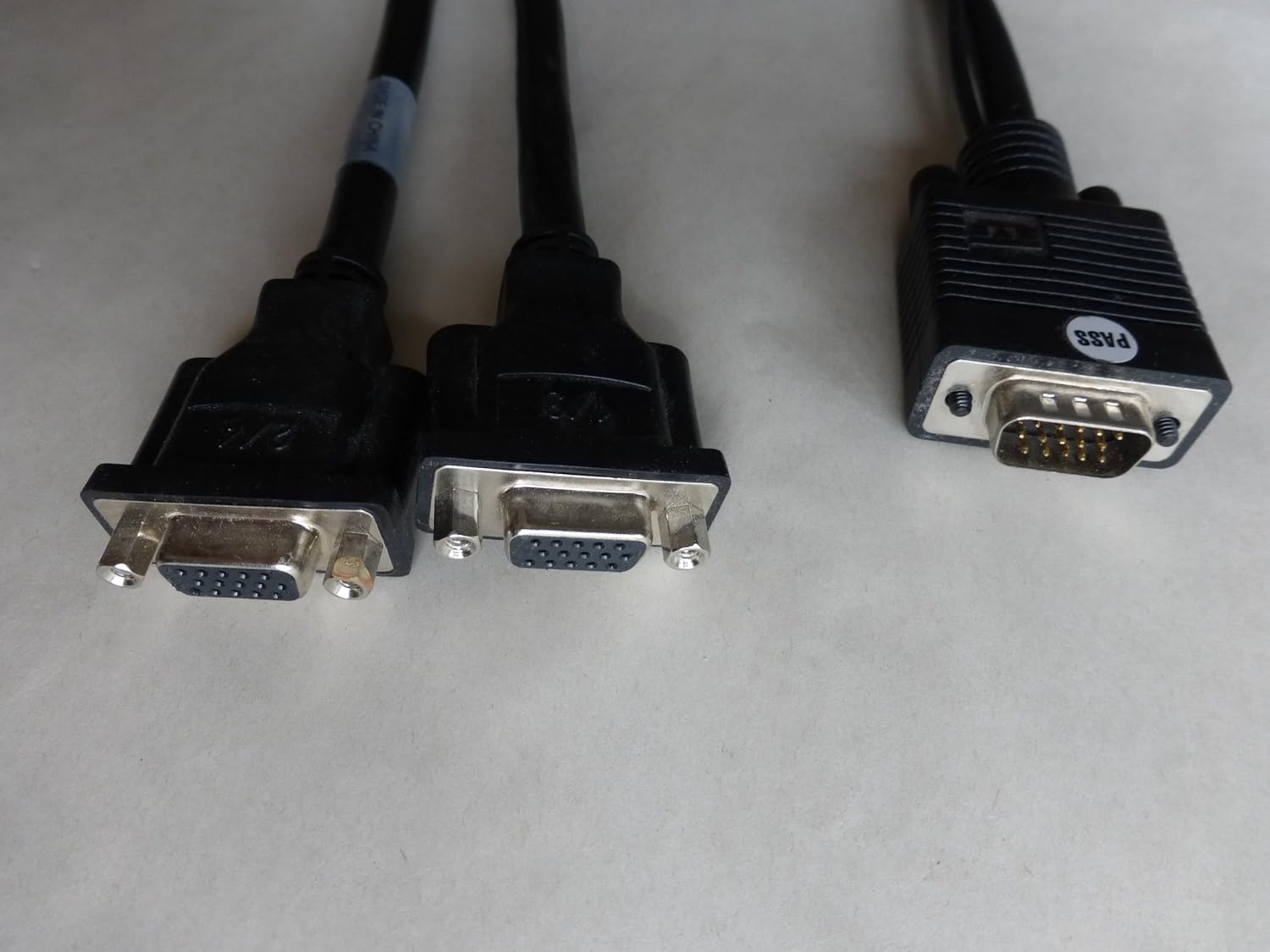
Image: A close-up of the dual VGA connectors and the DMS-59 input connector on the Y-cable, used for connecting two VGA monitors.
4. ຄໍາແນະນໍາການດໍາເນີນງານ
4.1 Connecting Monitors
The Matrox Millennium G200 (G2+/DUALP-PL) uses a DMS-59 connector to support dual analog displays. Use the provided Y-cable to connect your monitors:
- For two VGA monitors, use the DMS-59 to Dual VGA Y-cable.
- For one DVI monitor and one S-Video/Composite display, use the DMS-59 to DVI and S-Video/Composite Y-cable.
4.2 ການຕັ້ງຄ່າການສະແດງຜົນ
Once drivers are installed, you can configure your display settings through your operating system's display control panel. Matrox also provides its own display utility for advanced settings.
- ຄວາມລະອຽດ ແລະອັດຕາການໂຫຼດຂໍ້ມູນຄືນໃໝ່: Adjust these settings to match your monitor's native resolution and preferred refresh rate for optimal display quality.
- ການຕິດຕັ້ງຫຼາຍຈໍພາບ:
- Extended Desktop: Extend your desktop across two monitors to increase your workspace.
- Cloned/Mirrored Displays: Duplicate the same image on both monitors.
- ສະແດງທິດທາງ: Rotate your display if using a pivot-capable monitor.
5. ບໍາລຸງຮັກສາ
Proper maintenance ensures the longevity and optimal performance of your graphics adapter.
- ການກຳຈັດຂີ້ຝຸ່ນ: Periodically open your computer case and gently clean any dust accumulation on the graphics card and its heatsinks using compressed air. Ensure the computer is powered off and unplugged before cleaning.
- ກະແສລົມ: Ensure your computer case has adequate airflow to prevent overheating, which can affect the performance and lifespan of the graphics card.
- ອັບເດດໄດເວີ: Check the Matrox website periodically for updated drivers. Keeping your drivers current can improve performance, add new features, and resolve compatibility issues.
6. ການແກ້ໄຂບັນຫາ
If you encounter issues with your Matrox Millennium G200 graphics adapter, refer to the following common troubleshooting steps:
- ບໍ່ມີຈໍສະແດງຜົນໃນຈໍສະແດງຜົນ:
- Ensure the monitor is powered on and correctly connected to the graphics card using the appropriate Y-cable.
- Verify the graphics card is fully seated in its PCI slot. Power off the computer, unplug it, open the case, and reseat the card.
- Check if your monitor input is set to the correct source (VGA, DVI).
- ທົດສອບດ້ວຍຈໍພາບ ຫຼື ສາຍໄຟອື່ນຖ້າເປັນໄປໄດ້.
- Incorrect Resolution or Colors:
- Ensure the latest Matrox drivers are installed.
- Adjust display settings in your operating system's control panel to the monitor's native resolution and desired color depth.
- ຄວາມບໍ່ໝັ້ນຄົງຂອງລະບົບ ຫຼື ການຂັດຂ້ອງ:
- ກວດສອບວ່າບັດກຣາບຟິກໄດ້ຖືກຕິດຕັ້ງ ແລະ ຮັກສາໄວ້ຢ່າງຖືກຕ້ອງ.
- Ensure your system's power supply unit (PSU) meets the minimum requirements for all installed components.
- Check for driver conflicts with other hardware. Try reinstalling the Matrox drivers.
- Monitor system temperatures to ensure the card is not overheating.
7. ຂໍ້ມູນຈໍາເພາະ
| ຄຸນສົມບັດ | ລາຍລະອຽດ |
|---|---|
| ໝາຍເລກຕົວແບບ | G2+/DUALP-PL |
| ຍີ່ຫໍ້ | ມາໂທຣກ |
| Graphics Coprocessor | MGA G200 |
| ຫນ່ວຍຄວາມຈໍາວິດີໂອ | 16 MB |
| ປະເພດກາຟິກ RAM | SRAM |
| ການໂຕ້ຕອບຜົນຜະລິດວິດີໂອ | DMS-59 (supporting DVI, VGA via adapter) |
| ປະເພດການໂຕ້ຕອບ | PCI |
| ນ້ໍາຫນັກລາຍການ | 2 ປອນ (ປະມານ) |
| ວັນທີທໍາອິດທີ່ມີ | ວັນທີ 28 ມັງກອນ 2005 |
8. ການຮັບປະກັນແລະການສະຫນັບສະຫນູນ
For detailed warranty information, technical support, and driver downloads, please refer to the official Matrox webເວັບໄຊ ຫຼືຕິດຕໍ່ພະແນກບໍລິການລູກຄ້າຂອງເຂົາເຈົ້າ.
Matrox Official Webເວັບໄຊ: https://www.matrox.com/graphics/en/support/
When contacting support, please have your product model number (G2+/DUALP-PL) and any relevant system information ready.