
1. ບົດແນະນຳ
The Pinnacle PCTV Deluxe is a versatile USB 1.0/2.0 solution designed for watching and recording television broadcasts directly on your laptop or desktop PC. It supports PAL/SECAM TV standards and offers high-quality video capture. For optimal performance, a USB 2.0 connection is recommended.
This device integrates with PCTV Vision software, enabling real-time recording of TV shows and audio/video streams in MPEG 1/2 formats. Key features include direct burning to CD/DVD, live broadcast pause and playback, and access to teletext pages via Pinnacle web text technology. An infrared remote control is included for convenient operation.
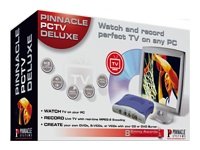
Image showing the retail box for the Pinnacle PCTV Deluxe. The box features the product name, 'Watch and record perfect TV on any PC' slogan, and illustrations of a monitor displaying TV content, optical discs, and the PCTV Deluxe device.
2. ເນື້ອໃນຊຸດ
ກະລຸນາກວດສອບວ່າລາຍການທັງໝົດທີ່ມີລາຍຊື່ລຸ່ມນີ້ຢູ່ໃນຊຸດຂອງທ່ານ:
- Pinnacle PCTV Deluxe USB TV Card
- ການຄວບຄຸມໄລຍະໄກ infrared
- Software CD (PCTV Vision)
- ຄູ່ມືການຕິດຕັ້ງ
3. ຕັ້ງຄ່າ
3.1 ຄວາມຕ້ອງການລະບົບ
- ລະບົບປະຕິບັດການ: Windows
- Available USB 1.0 or 2.0 port (USB 2.0 recommended for best performance)
- Minimum processor and RAM as specified by the PCTV Vision software
3.2 ການຕິດຕັ້ງຮາດແວ
- Connect your TV antenna or cable source to the antenna input on the Pinnacle PCTV Deluxe device.
- Plug the USB cable from the PCTV Deluxe device into an available USB port on your computer.
- Insert the batteries into the infrared remote control.
3.3 ການຕິດຕັ້ງຊອບແວ
- Insert the PCTV Vision Software CD into your computer's optical drive.
- Follow the on-screen instructions to install the PCTV Vision software and necessary drivers.
- ຣີສະຕາດຄອມພິວເຕີຂອງທ່ານຖ້າຖືກຖາມຫຼັງຈາກການຕິດຕັ້ງສຳເລັດແລ້ວ.
4. ຄໍາແນະນໍາການດໍາເນີນງານ
4.1 Watching Live TV
- Launch the PCTV Vision software from your desktop or Start menu.
- The software will typically scan for available TV channels upon first launch. Follow the prompts to complete channel setup.
- Use the PCTV Vision interface or the included remote control to change channels and adjust volume.
4.2 Recording TV Shows
The PCTV Deluxe allows real-time recording of TV shows and audio/video streams in MPEG 1/2 formats.
- While watching live TV, locate the 'Record' button within the PCTV Vision software interface or on your remote control.
- Press 'Record' to begin recording the current program.
- To stop recording, press the 'Stop' button. Recorded files are typically saved to a designated folder on your computer.
- You can burn recorded content directly to a CD or DVD using the software's integrated features.
4.3 Time-Shifting (Pause/Playback Live TV)
The time-shifting feature allows you to pause a live broadcast and resume watching from where you left off.
- While watching live TV, press the 'Pause' button on the software interface or remote control.
- To resume watching, press 'Play'. You can also use the 'Rewind' and 'Fast Forward' functions to navigate within the buffered content.
4.4 Teletext Functionality
ພູນນາກ web text technology enables you to view teletext pages directly.
- Access the teletext function through the PCTV Vision software interface.
- Navigate teletext pages using the provided controls or remote.
5. ບໍາລຸງຮັກສາ
To ensure the longevity and optimal performance of your Pinnacle PCTV Deluxe:
- ຮັກສາອຸປະກອນໃຫ້ສະອາດ ແລະບໍ່ມີຝຸ່ນ. ໃຊ້ຜ້າອ່ອນໆ, ແຫ້ງເພື່ອທໍາຄວາມສະອາດ.
- ຫຼີກເວັ້ນການເປີດເຜີຍອຸປະກອນກັບອຸນຫະພູມທີ່ຮຸນແຮງ, ຄວາມຊຸ່ມຊື່ນ, ຫຼືແສງແດດໂດຍກົງ.
- Periodically check the Pinnacle website for software and driver updates to ensure compatibility and access to the latest features.
- Store the remote control and device in a safe place when not in use.
6. ການແກ້ໄຂບັນຫາ
If you encounter issues with your Pinnacle PCTV Deluxe, consider the following troubleshooting steps:
- ບໍ່ມີສັນຍານໂທລະພາບ: Ensure your antenna or cable connection is secure and properly connected to the device. Verify that your TV source is active.
- ຊອບແວບໍ່ເປີດໃຊ້/ຂັດຂ້ອງ: Try reinstalling the PCTV Vision software and drivers. Ensure your operating system is up to date.
- ການຄວບຄຸມໄລຍະໄກບໍ່ຕອບສະຫນອງ: Check the batteries in the remote control and replace them if necessary. Ensure there are no obstructions between the remote and the device's IR receiver.
- ຄຸນນະພາບວິດີໂອບໍ່ດີ: Ensure you are using a USB 2.0 port for optimal performance. Check your antenna signal strength.
- ອຸປະກອນບໍ່ຮັບຮູ້: Disconnect and reconnect the USB device. Try a different USB port. Reinstall the drivers.
For further assistance, refer to the support section on the Pinnacle Systems webເວັບໄຊ.
7. ຂໍ້ມູນຈໍາເພາະ
| ຄຸນສົມບັດ | ລາຍລະອຽດ |
|---|---|
| ຍີ່ຫໍ້ | ພູນນາກ |
| ຊຸດ | Pinnacle PCTV Deluxe |
| ຊື່ຕົວແບບ | Pinnacle PCTV Deluxe |
| ໝາຍເລກຕົວແບບ | 202261290 |
| ການໂຕ້ຕອບຮາດແວ | USB (ຮອງຮັບ 1.0/2.0) |
| ຄວາມເຂົ້າກັນໄດ້ຂອງລະບົບປະຕິບັດການ | Windows |
| ຄວາມລະອຽດການຖ່າຍວິດີໂອ | 480p |
| ຮູບແບບການບັນທຶກວິດີໂອ | MPEG 1/2 |
| ນ້ໍາຫນັກລາຍການ | 2.64 ປອນ |
| ຂະໜາດແພັກເກັດ | 14.96 x 9.06 x 3.54 ນິ້ວ |
| ຜູ້ຜະລິດ | ລະບົບ Pinnacle |
| ASIN | B000092RSA |
8. ການຮັບປະກັນແລະການສະຫນັບສະຫນູນ
Pinnacle Systems products are typically covered by a limited manufacturer's warranty. Please refer to the warranty information included with your product packaging or visit the official Pinnacle Systems webເວັບໄຊສໍາລັບຂໍ້ກໍານົດແລະເງື່ອນໄຂລະອຽດ.
For technical support, driver downloads, and frequently asked questions, please visit the support section of the Pinnacle Systems website. Contact information for customer service may also be found there.